
How to make the exam routine
An exam series is one exam for many classes, such as the First Terminal Examination for Class 1 to Class 10, with one routine. SchoolEasy places every class's papers so that no student has two papers at once and none falls on a holiday. Set up the basics below first, then follow the steps.
Admins, and staff who have the Manage exams permission.Updated
Before you start
Set these up in this order: each one is chosen inside the next, so a class needs its branch and a student needs a section. They are ordinary pages. Open each one and add what it asks for.
- 1
Academic session
NeededStart this year's session and make it the active one.
Why: An exam series runs inside the active session.
Sessions - 2
Branch
NeededAdd your campus. A school with one building still has one branch.
Why: A series is held in one branch, in that branch's rooms.
Branches - 3
Rooms
RecommendedEach room's number, its branch, and its benches and seats per bench.
Why: The routine warns when a sitting has more students than your rooms seat, and the seating plan can't be made without rooms.
Settings → Rooms - 4
Classes
NeededClass 1 to Class 10, or your own names, each in its branch.
Why: Each class taking part becomes one exam, with its own mark sheet.
Classes - 5
Subjects
NeededThe subjects each class studies.
Why: Each subject becomes a paper. A class with no subjects can't join the series.
Classes → open a class → Subjects - 6
Sections
NeededEach class's sections, such as 8 A and 8 B. SchoolEasy calls them batches. Give each one its home room.
Why: Students are enrolled into sections, so sections come before students.
Batches - 7
Students
RecommendedEvery student, enrolled in a class and a section.
Why: The routine counts them against your rooms, and marks, admit cards and seating need them.
Students - 8
Holidays and closures
RecommendedThe days the school is closed.
Why: A paper is never put on a holiday or closure on the calendar, so add them before you generate.
Calendar - 9
Class timetable
OptionalThe weekly periods of every section.
Why: With a timetable, exam days follow its school days. Without one, choose the exam days yourself in the series.
Roster
The steps
Step 1
Create the exam series
Exams → New exam seriesPress New exam series. The dialog has two parts.
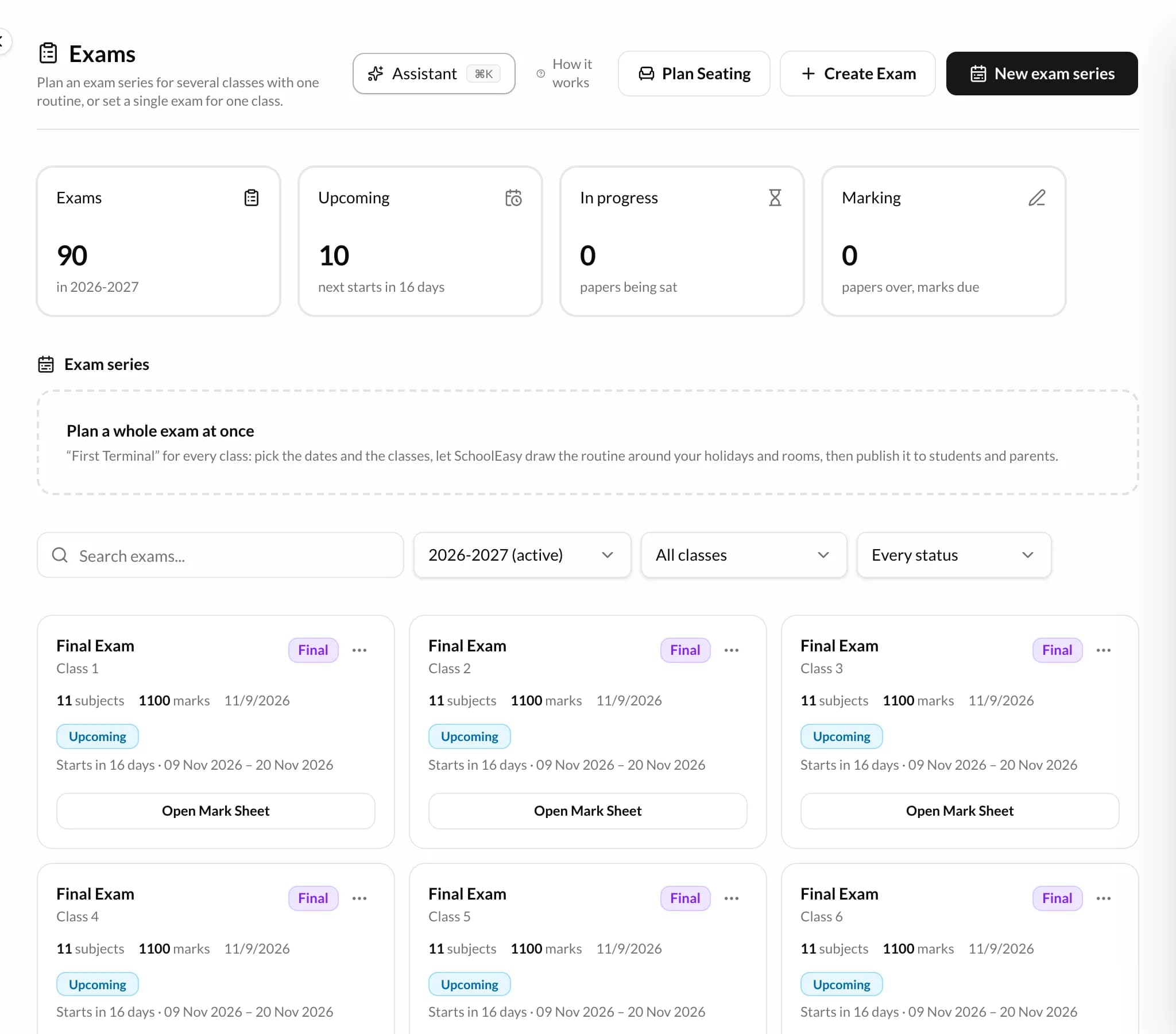
- 1New exam series
1.The exams and their dates
Pick the branch, name the series, set the first and last day, how many sittings a day and their times, and the exam days: follow the timetable, or choose the days.
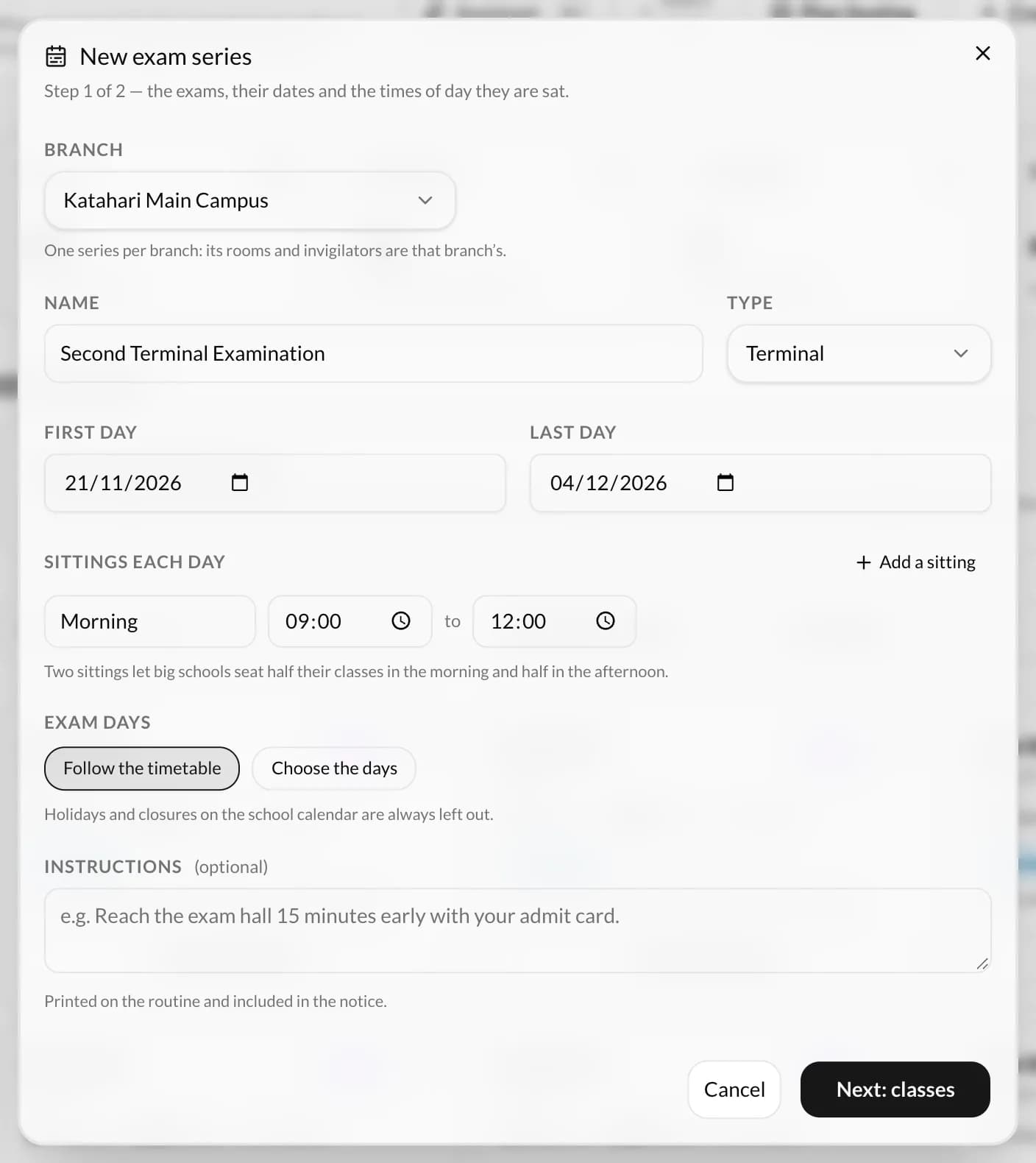
- 1The branch
- 2The series' name
- 3The first and last day
- 4Sittings each day, and their times
- 5Exam days: follow the timetable, or choose the days
- 6Next: classes
2.The classes
Tick the classes sitting it. Their subjects come in as papers. Set the full and pass marks once for every subject, then press Create.
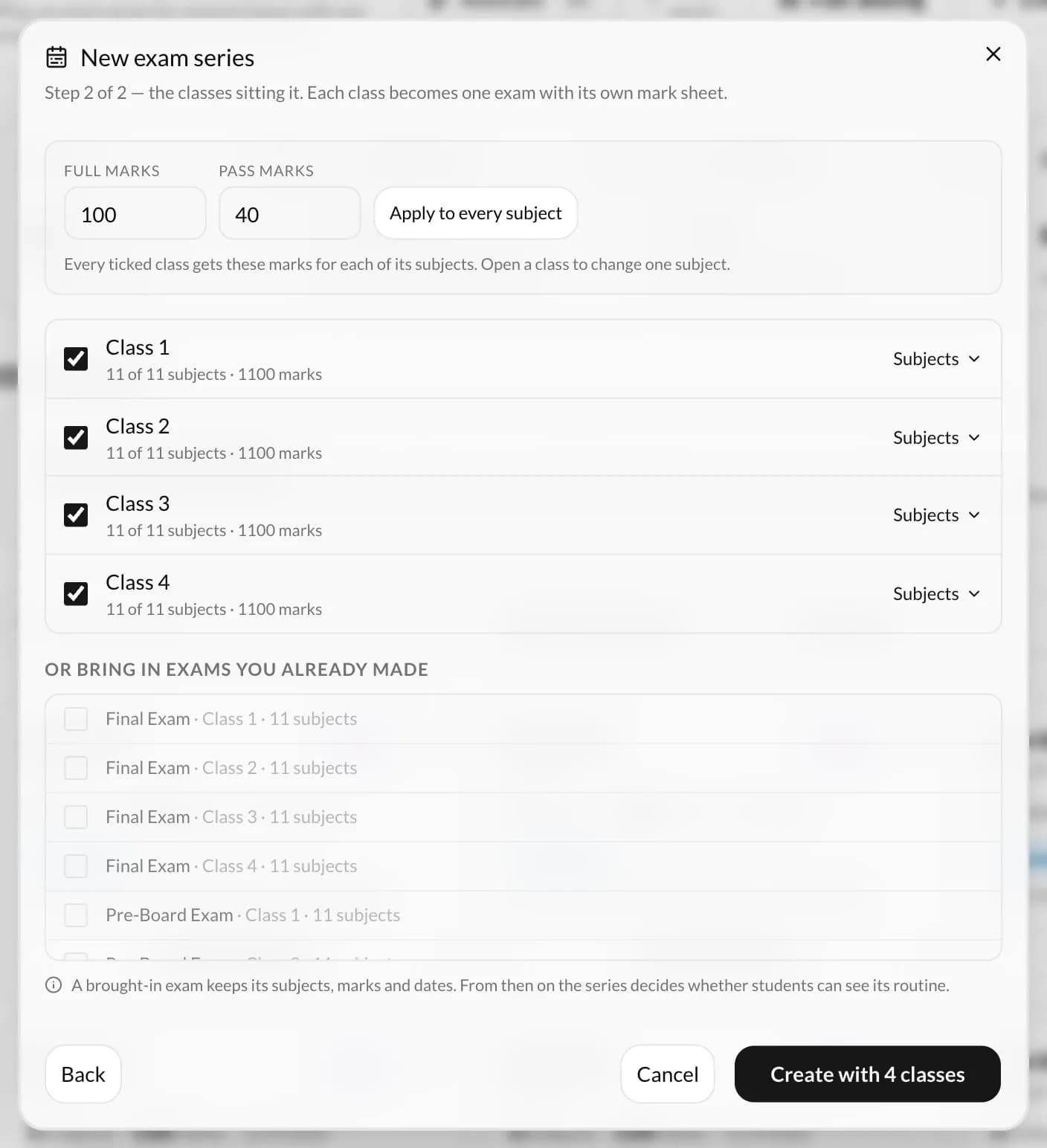
- 1Full and pass marks, given to every subject with one click
- 2The classes sitting it. Each one's subjects become its papers; Subjects changes one
- 3Create
Holidays and closures on the calendar are always left out of the exam days.
Step 2
Generate the routine
Exams → open the series → GenerateOn the series page press Generate. It first tells you whether your rooms seat everyone. Choose how each class's papers are laid out (spread across the dates, or as early as possible) and the rest you would like between them; with more than one sitting a day, also how many papers a class may sit in a day. Then press Generate.
The routine fills the board with a short report. If a paper has no slot, the report offers a one-click fix, such as a later last day, one more sitting or one more exam day. Drag any paper to another day or time, then press Save routine.
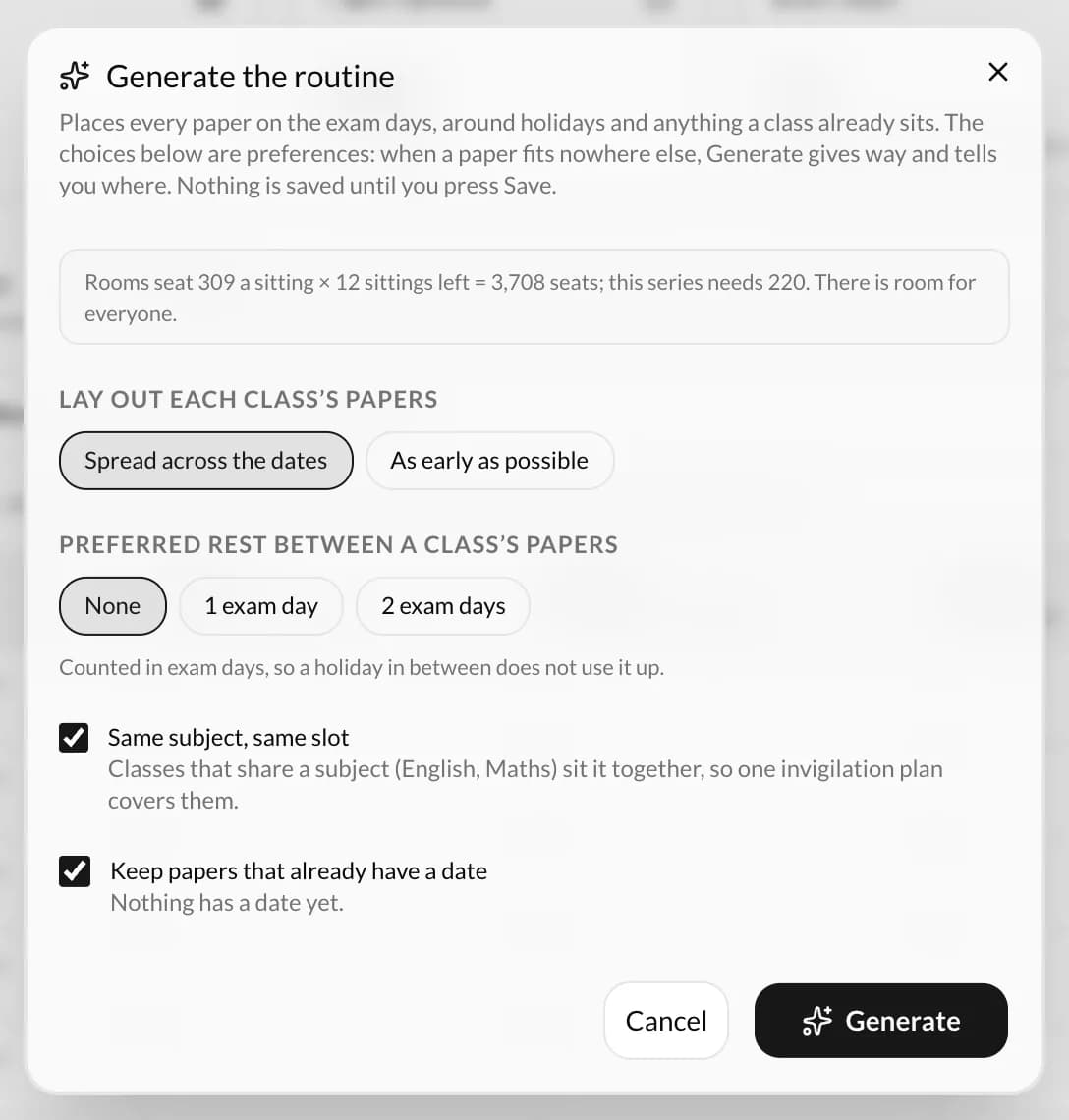
- 1Whether your rooms seat everyone, worked out for you
- 2Spread across the dates, or as early as possible
- 3Rest between a class's papers
- 4Same subject in the same slot for every class, and keep papers that already have a date
- 5Generate fills the board. It does not save
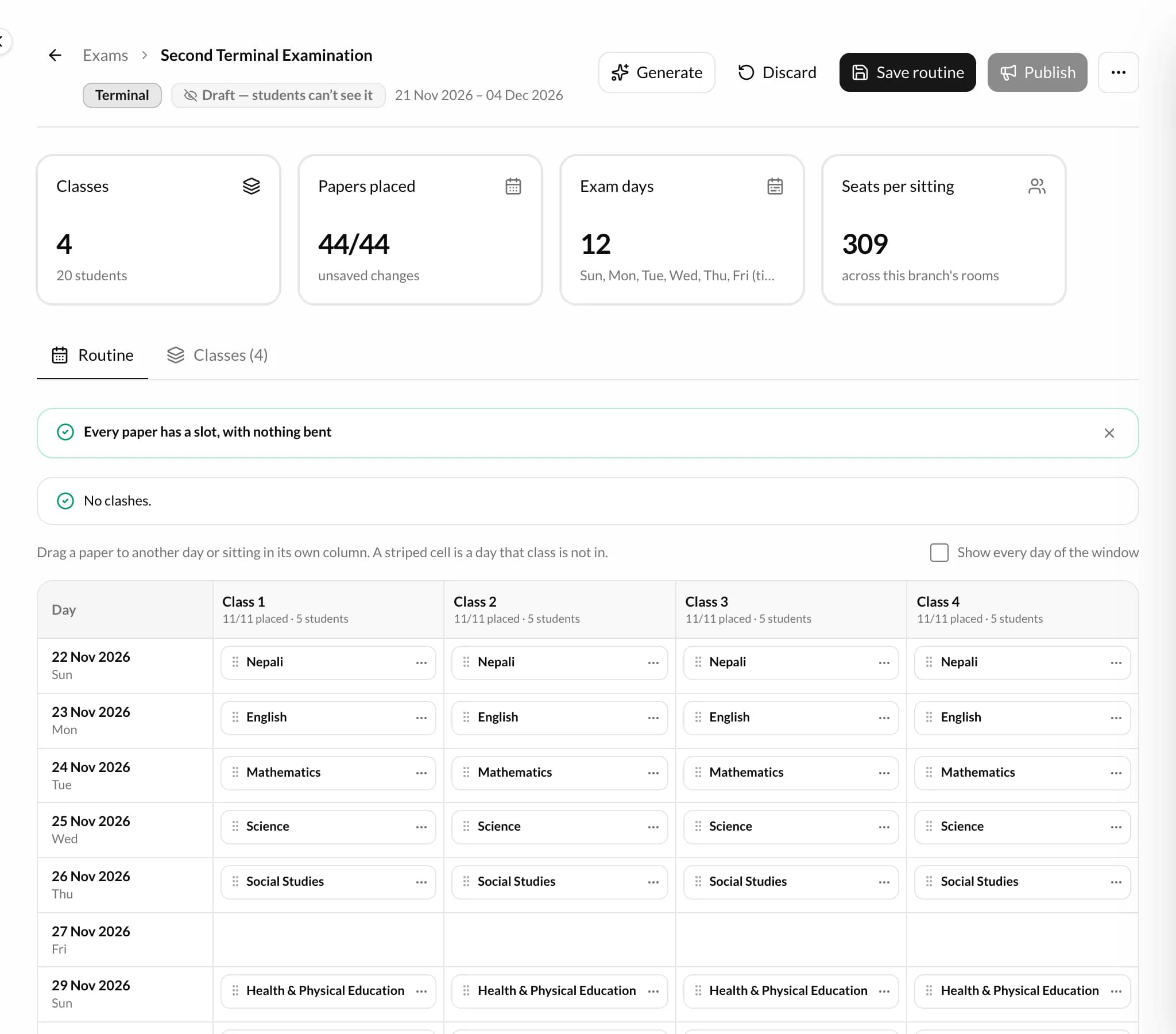
- 1The report: anything without a slot, with one-click fixes
- 2Each paper on its day and sitting. Drag one to move it
- 3Save routine
- 4A draft: students and parents can't see it yet
- 5Publish, once it is saved
- 6More: Print the routine
Generate never saves. Press Save routine when the board looks right. A save is refused if the same students would sit two papers at once, or a paper is on a closed day.
Step 3
Publish it to students and parents
Exams → open the series → PublishPress Publish. Tick Post a notice to each class to send every class its own papers, dates and times, with a message if you like.
Changed the routine after publishing? Save it, then press Publish changes so everyone sees the new dates.
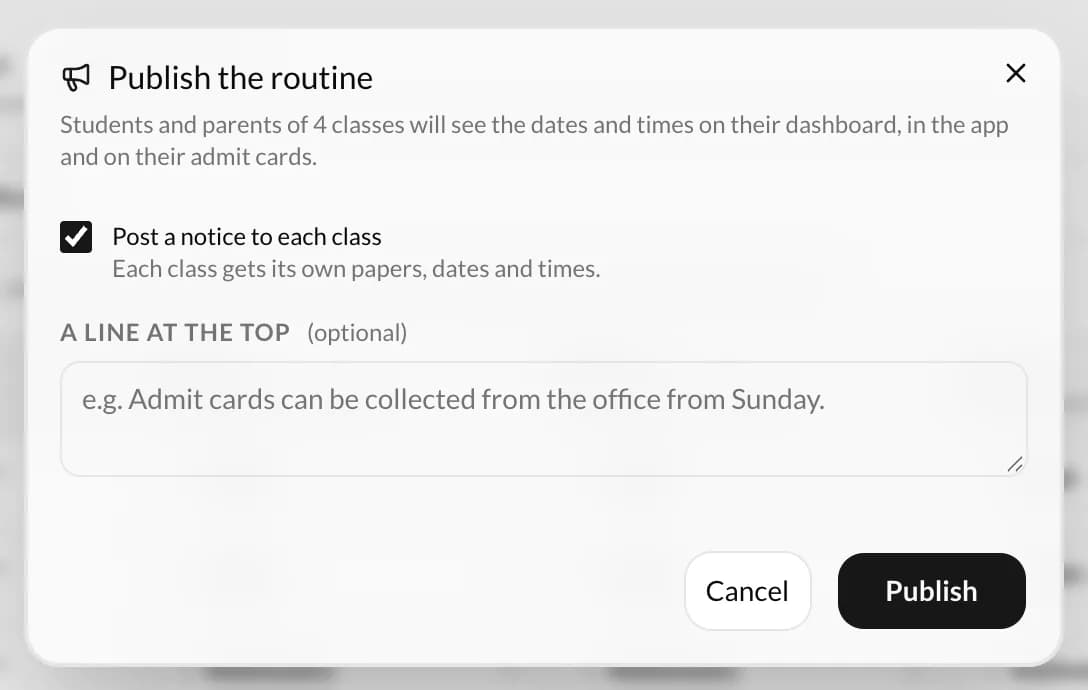
- 1Post a notice to each class: its own papers, dates and times
- 2A line at the top of the notice, if you like
- 3Publish: students and parents see it from now
Students and parents see nothing until you publish. Staff see the draft, marked as a draft.
Step 4
Make the seating plan (optional)
Exams → open a class's exam → Seating ArrangementFrom the series page open one class's exam and go to its Seating Arrangement tab. Press Plan Seating Arrangement, pick the exams written at the same time and the rooms, and SchoolEasy seats the students bench by bench, mixing the classes.
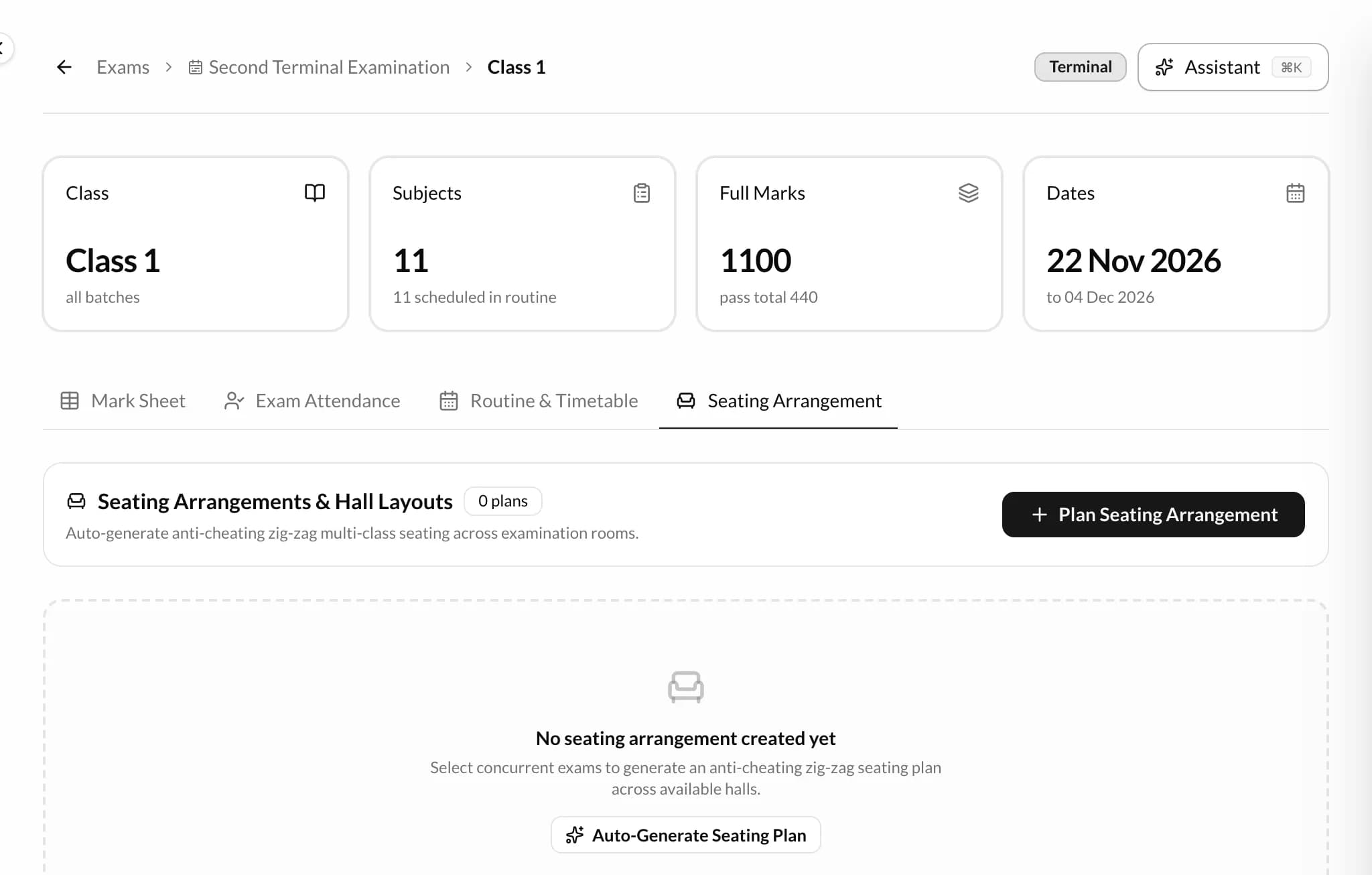
- 1The exam's Seating Arrangement tab
- 2Plan Seating Arrangement opens the seating planner
This needs rooms (Settings → Rooms) and a saved routine: one plan seats one sitting, the papers written on one date at one time.
Step 5
Print the routine
Exams → open the series → More (⋯) → Print the routineOpen the More menu (⋯) on the series page and choose Print the routine for a copy for the notice board.
When something doesn't fit
- A class says “No subjects yet — add them on the class page”.
- Add the class's subjects (Classes → open the class → Subjects), then add the class to the series with Add classes.
- The report says some papers have no slot.
- There are more papers than days and sittings. Use one of the fixes in the report, or give the series more days, a second sitting or another exam day.
- Papers land on a day the school is closed every week.
- With no timetable yet, the series uses every day of the week. Change its Exam days to Choose the days and untick that day.
- Save routine is refused.
- Two papers for the same students are at the same time, or a paper is on a closed day. The issues panel names them: move one paper and save again.
- Students and parents can't see the routine.
- It is still a draft. Press Publish.
- The seating plan says an exam has no paper in that sitting.
- Save the routine first, or leave that exam out of the plan.